


PuTTYgen is a tool included with the PuTTY suite that allows you to generate SSH key pairs for secure authentication when connecting to a server.
An SSH key pair consists of:
- A private key, which remains on your computer.
- A public key, which is added to the server.
Table of Contents
Step 1: Download and Open PuTTYgen

Download and install PuTTYgen as part of the PuTTY package.
Launch PuTTYgen from the Start menu or installation directory.
Step 2: Generate a New Key Pair
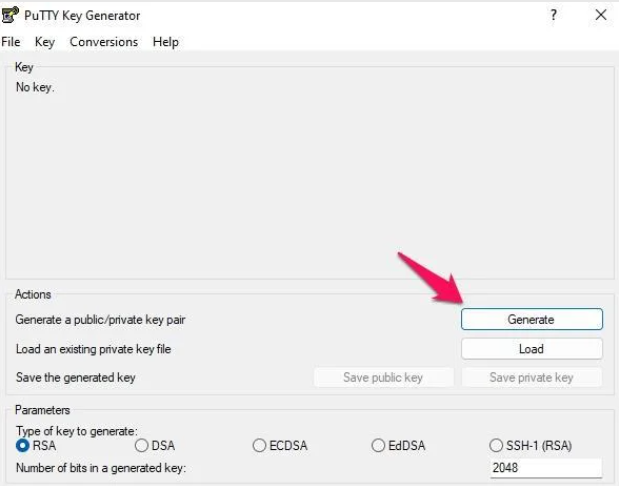
In the PuTTYgen window, click Generate.
While the key is being generated, move your mouse cursor randomly inside the application window. These movements provide the randomness needed to create a secure key.
Once the process is complete, PuTTYgen will display the generated key information.
Step 3: Protect the Private Key
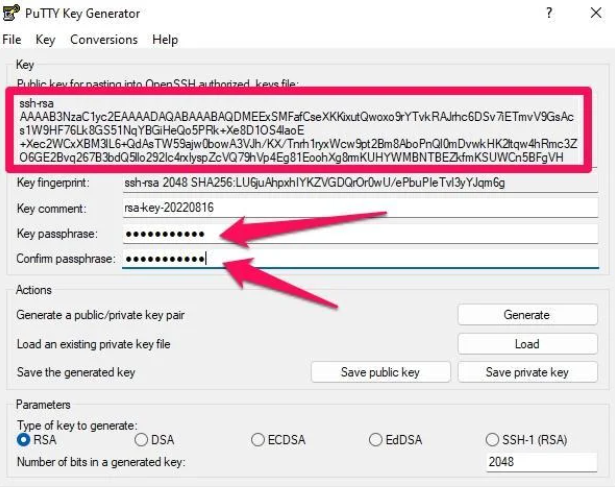
In the following fields, enter a passphrase:
- Key passphrase
- Confirm passphrase
A passphrase helps protect the private key if it is copied or accessed by an unauthorized person.
For better security, use a strong passphrase containing a combination of:
- Uppercase letters
- Lowercase letters
- Numbers
- Special characters
Step 4: Save the Keys
After generating the key pair, save both files:
Save the Public Key
Click:
Save public key
Choose a secure location on your computer.
Save the Private Key
Click:
Save private key
Choose a secure location and store the file safely.
Important: Never share your private key with anyone.

Step 5: Add the Public Key to the Server
Open the public key file or copy the public key displayed in the PuTTYgen window.
Add the key to the following file on the server:
~/.ssh/authorized_keysThe public key must be added on a separate line.
Using the Private Key with PuTTY
When connecting through PuTTY:
- Open PuTTY.
- Navigate to Connection → SSH → Auth → Credentials.
- Select your saved private key file.
- Connect to the server normally.
PuTTY will use the private key for authentication.
Security Recommendations
- Keep your private key in a secure location.
- Use a passphrase to protect the key.
- Do not send private keys by email or messaging applications.
- Remove unused public keys from servers periodically.
Summary
To generate SSH keys on Windows, use PuTTYgen to create a key pair, protect the private key with a passphrase, and save both the public and private keys. The public key should then be added to the server’s ~/.ssh/authorized_keys file to enable SSH key authentication.