


Before switching your domain to mybox servers, you can verify that your website works correctly on the new hosting - without affecting visitors to your current site. This is done by editing the hosts file on your computer, which lets your browser connect directly to the mybox server IP instead of following DNS.
Use this method after you have already transferred your files, imported your database, and updated configuration files on the new server.
Table of Contents
Step 1 - Find your server IP address

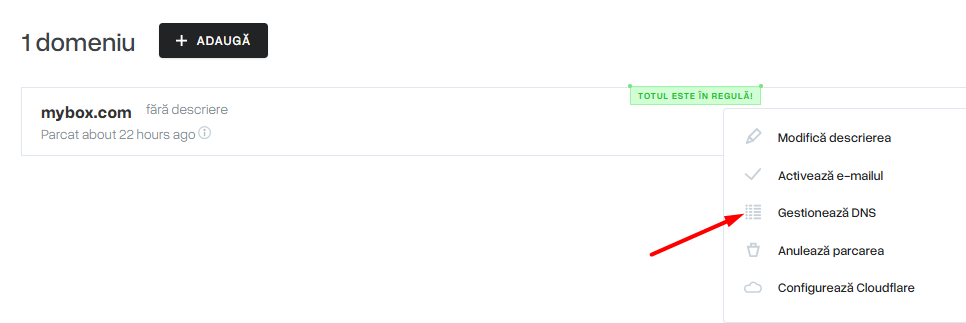
Conectați-vă la panoul mybox și accesați secțiunea Domenii. Faceți clic pe domeniul pe care l-ați parcat, extindeți opțiunile acestuia și faceți clic pe Gestionare DNS.
În tabelul zonei DNS, găsiți înregistrarea A marcată cu verde – aceasta este adresa IP a serverului dvs. mybox. Notați-o.
De asemenea, puteți găsi adresa IP executând o comandă PING pe numele de gazdă FTP, care are următorul format: yourlogin.ftp.mybox.com

The IP address can also be obtained by executing the PING command on the FTP server host, which is in the form of login.ftp.mybox.com
Step 2 - Edit the hosts file
Choose the method for your operating system.
Windows - using Hosts File Editor (recommended)
The easiest method on Windows is to use the free Hosts File Editor application.
After downloading, installing, and launching the app, enter your server IP address in the IP Address column and your domain name in the Host Names column. Save the changes by clicking Save.
Windows - manual editing
The hosts file is located at:
C:\Windows\System32\drivers\etc\hosts
The file has no extension. To edit it, you need administrator privileges. Open Notepad as administrator, then open the hosts file from the path above. At the end of the file, add a new line in the following format:
123.456.78.90 yourdomain.com123.456.78.90 www.yourdomain.comReplace 123.456.78.90 with your actual server IP and yourdomain.com with your domain. Save the file. If prompted, confirm that you want to overwrite the system file.
macOS - terminal
Open Terminal and run:
sudo nano /private/etc/hostsEnter your administrator password when prompted. At the end of the file, add:
123.456.78.90 yourdomain.com123.456.78.90 www.yourdomain.comSave with Ctrl+O, then exit with Ctrl+X.
Step 3 - Test your website
Open your browser and navigate to your domain. You should now see the version of the site hosted on mybox. If everything looks and works correctly, you can proceed with changing the domain delegation.
Reverting the hosts file
After you have confirmed the site works and changed the domain delegation, remove the lines you added from the hosts file. On macOS, you can also comment them out by adding # at the start of each line:
# 123.456.78.90 yourdomain.com